Session Profile
NinjaTrader 8 Indicator • 1 Device / 1 PC Lifetime License • Instant Download & Activation • 48-Hour Money-Back Guarantee
Always at your side
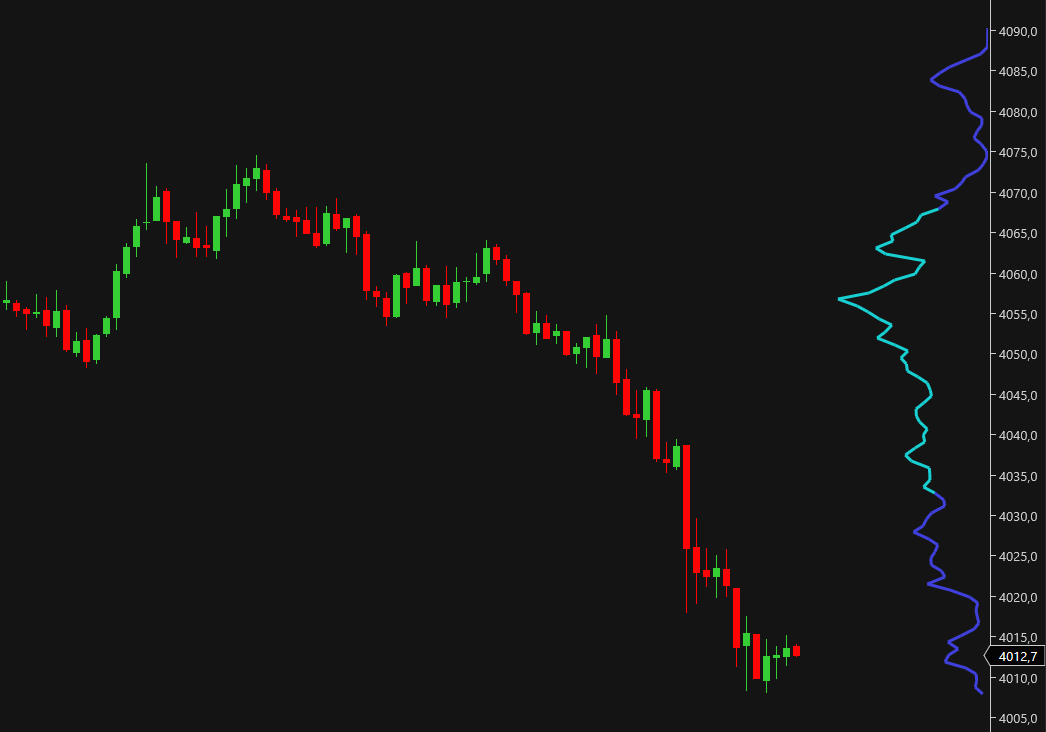
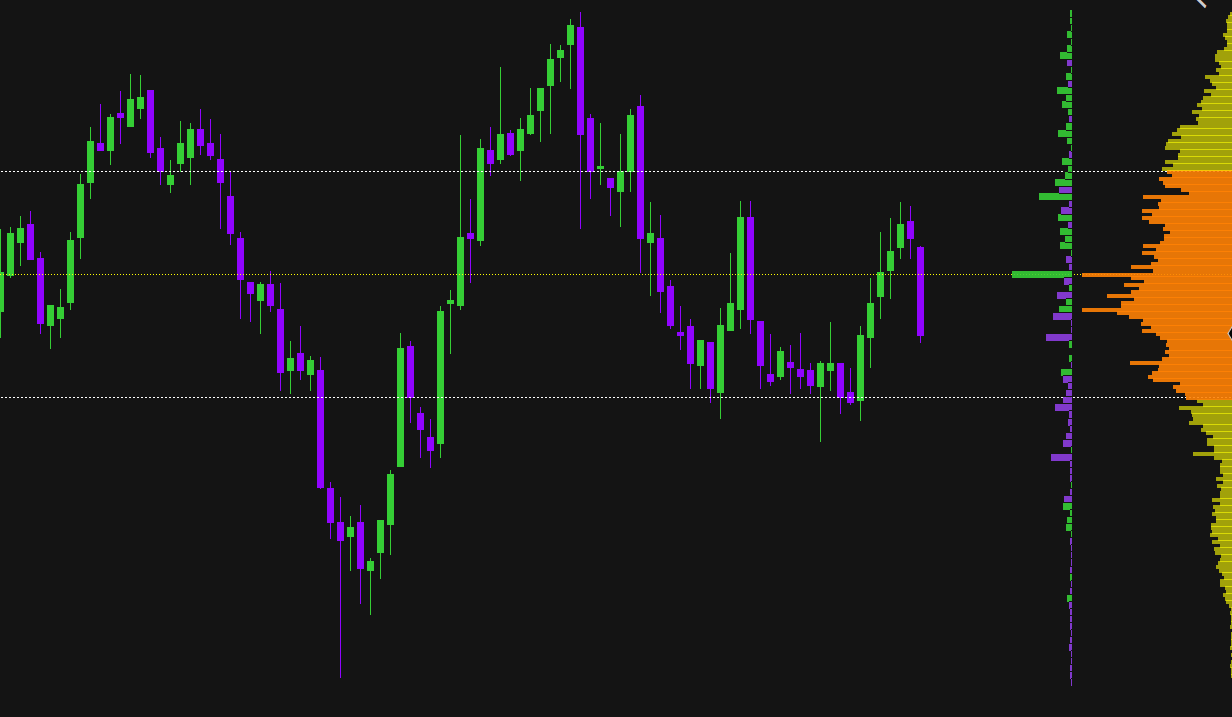
The session profile stays fixed to the side of your chart and helps you mantaining a clear overview of the asset. It detects the Value Area, Point of Control (POC) and how the market behaves at each level of price in real time.
Delta Profile
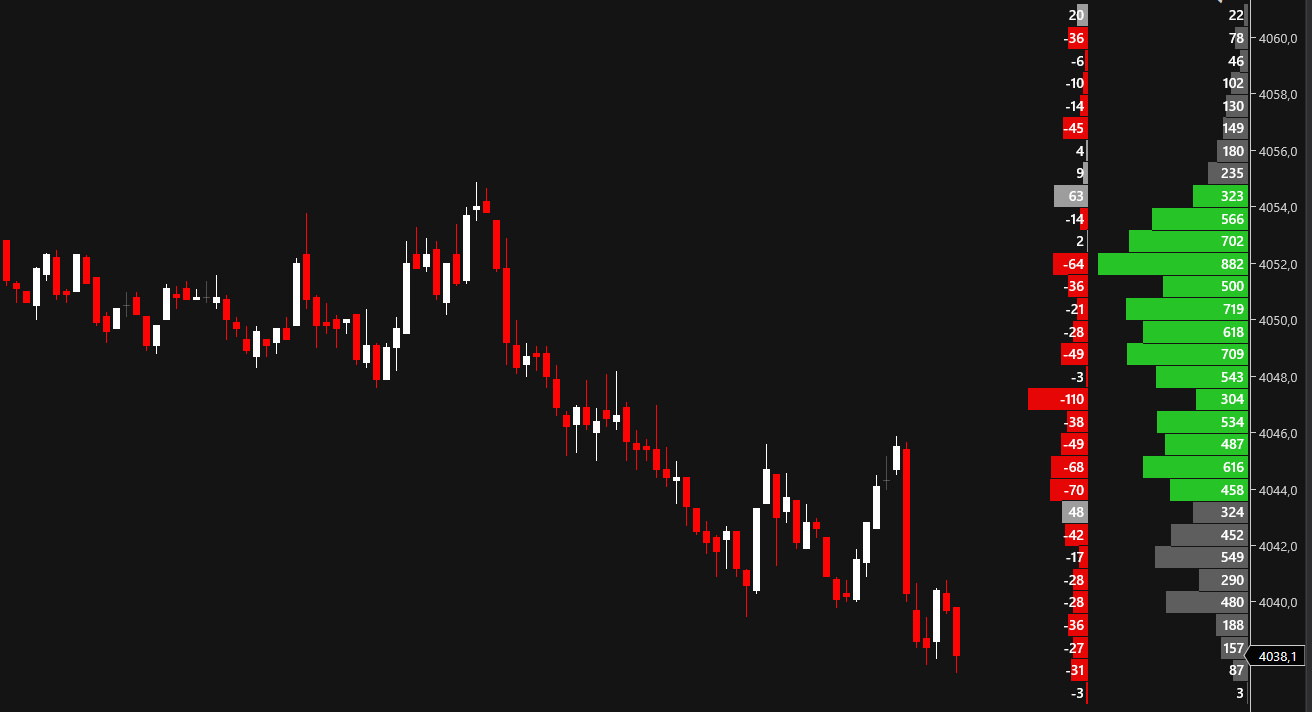
Analyze aggressive buying versus selling pressure at every price tier with custom side-by-side or flipped delta histograms.
Your Setup, Your Look
It is fully customizable in every aspect to match your visualization preferences. And no matter what, it will always look good.
Indicator Setup Instructions
Configure the session anchor (Right/Left) and calculation mode (VisibleBars, LastNBars, TimeMinutes, TimeOfDay, or AllBars).
Adjust profile width (Percentage or FixedPixels) and sub-bar resolution (Tick_1, Second_1, etc.) for intrabar precision.
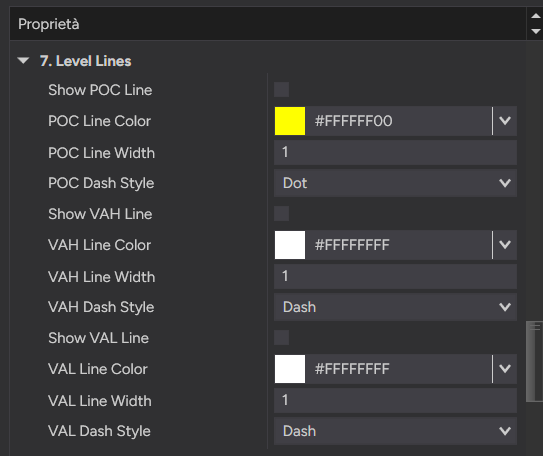
Customize colors, Value Area opacity boost, level lines (POC, VAH, VAL), and optional Delta profile overlays.
Session Profile Lifetime License
- Valid for 1 PC / 1 Device
- High-resolution Volume & Delta Profiles
- 48-Hour Money-Back Guarantee
- Lifetime updates & support
Settings Guide
Explore indicator properties directly from the NinjaTrader 8 panel.
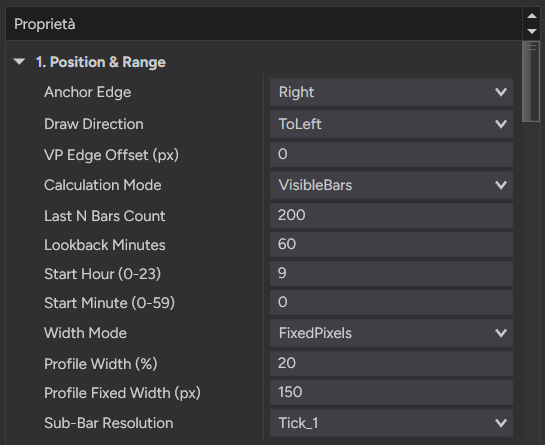
1. Position & Range
- • Anchor Edge: Choose between Right or Left edge of the screen.
- • Draw Direction: Direction in which the histogram bars extend (ToRight / ToLeft).
- • VP Edge Offset (px): Distance in pixels of the Volume Profile from the screen edge.
- • Calculation Mode: Chart range evaluated (VisibleBars, LastNBars, TimeMinutes, TimeOfDay, AllBars).
- • Last N Bars Count / Lookback Minutes: Bars count for LastNBars or lookback minutes for TimeMinutes.
- • Start Hour (0-23) & Start Minute (0-59): Start time parameters for TimeOfDay calculation mode.
- • Width Mode: Choose between Percentage of screen or FixedPixels width.
- • Profile Width (%) & Fixed Width (px): Maximum width expressed in percentage or fixed pixels.
- • Sub-Bar Resolution: Sub-bar data series (Tick_1, Second_1, Second_5, Minute_1, Disabled_PrimaryBar) used for precise intrabar calculation.
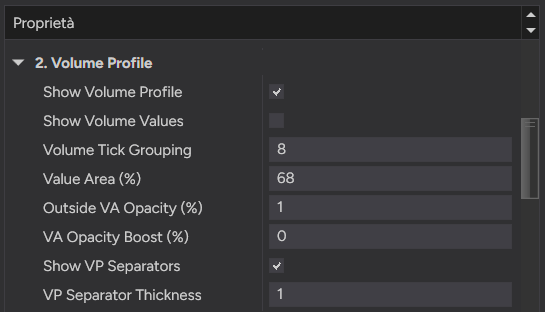
2. Volume Profile
- • Show Volume Profile: Enables or disables the Volume Profile histogram display.
- • Show Volume Values: Displays numeric volume values on each level.
- • Volume Tick Grouping: Number of ticks to group into each horizontal histogram bar.
- • Value Area (%): Percentage of total volume contained within the Value Area (default: 68%).
- • Outside VA Opacity (%) & VA Opacity Boost (%): Transparency outside VA and opacity boost inside VA.
- • Show VP Separators & Thickness: Displays separator lines between Volume Profile bars and pixel thickness.
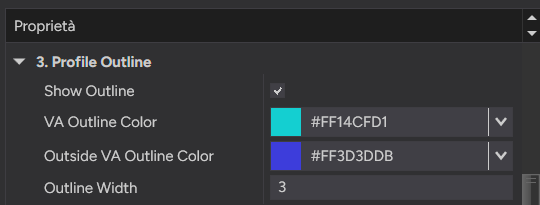
3. Profile Outline
- • Show Outline: Shows or hides the continuous polyline outline along the profile edge.
- • VA Outline Color: Outline color of the histogram inside the Value Area.
- • Outside VA Outline Color: Outline color of the histogram outside the Value Area.
- • Outline Width: Pixel thickness of the histogram polyline outline.
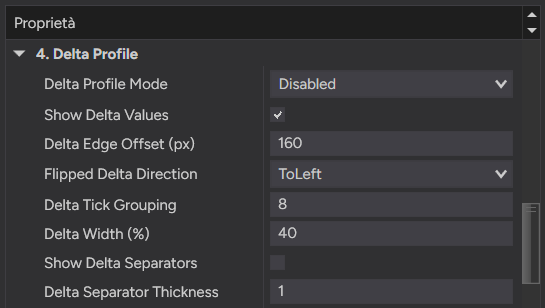
4. Delta Profile
- • Delta Profile Mode: Enables or disables Delta profile display (Disabled / Enabled).
- • Show Delta Values & Offset: Displays numeric delta values and pixel offset from screen edge (Delta Edge Offset).
- • Flipped Delta Direction: Direction in which Delta histogram bars extend (ToRight / ToLeft).
- • Delta Tick Grouping & Width (%): Tick grouping and width percentage relative to volume profile width.
- • Show Delta Separators & Thickness: Separator lines between Delta profile bars and pixel thickness.
5, 6 & 7. Colors & Level Lines
- • Volume Profile Colors: Customizable brushes for VA Color, Outside VA Color, POC Color, Value Text Color, and VP Separator Color.
- • Delta Profile Colors: Independent color pickers for Buy Delta Color (Positive), Sell Delta Color (Negative), and Delta Separator Color.
- • POC Line Settings: Toggle Show POC Line, with custom POC Line Color, Width, and Dash Style (Solid, Dash, DashDot, Dot).
- • VAH & VAL Line Settings: Horizontal lines for Value Area High (VAH) and Value Area Low (VAL) with independent colors, widths, and dash styles.